
PSA: Caravan Professional v1.3 Install Errors? - Try This
-
For anyone receiving errors when attempting to install the new update (v1.3), perhaps along the line of this:
[C]:\Users[Username]\AppData\Roaming\Microsoft Flight Simulator 2024\Packages\community/bksq-aircraft-caravanprovariants/html_ui/Pages/VCockpit/Instruments/Generic/Misc/bksq-aircraft-caravanprovariants/BlackSquareTablet/Shared/Assets/caravanElectricalVisualizer.svg'.
The system cannot find the path specified (0x3)" <- Or similar.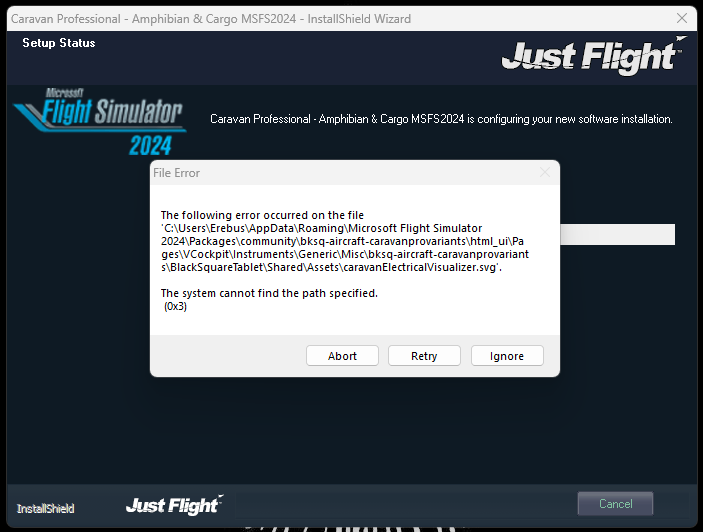
Try this workaround as found here:
https://support.justflight.com/support/solutions/articles/17000140967-i-get-a-0x3-error-message-when-installing-the-duke-
Open a console window (Right-click on the windows Start button and select Command Prompt or type in Command Prompt in the search bar).
-
Drag the Caravan installer file on to the console window. This will fill in the commandline with the full file path to the installer exe.
-
Add a space and then add BROWSE (in caps) then press return/enter.
*The installer should now pop up a Select path.. dialog where you can browse to select a custom location.
- Perhaps browse to your download folder (or make a temporary folder somewhere). The installer will then install the package to this location.
Once installed you can copy and paste the package/aircraft folder to your community folder.
(A quick way to access your community folder is by pressing the Windows Start Key then typing %appdata% and pressing enter/return -> then \Microsoft Flight Simulator 2024/2020\Packages\Community).Note copy and paste (rather than cut and paste, or move) as the real community folder may be encrypted and only copy will work correctly. Once successfully copied the package in the custom location can be deleted
Yes, it might be odd and goofy that we have to do this but it does work.
For whatever reason, I always have an issue installing/updating the Cargo/Amphib variant and receive the same message each time. The Passenger variant always installs/updates fine though.
-
