Skip to content
  • Categories
  • Recent
  • Tags
  • Popular
  • Users
Collapse
Just Flight Community Forum
  1. Home
  2. Just Flight
  3. MSFS Products
  4. Black Square Add-Ons
  5. Steam Gauge Overhaul
  6. King air master caution /warning flashing indicators.

King air master caution /warning flashing indicators.

Scheduled Pinned Locked Moved Steam Gauge Overhaul
11 Posts 4 Posters 221 Views 1 Watching
  • Oldest to Newest
  • Newest to Oldest
  • Most Votes
Reply
  • Reply as topic
Log in to reply
This topic has been deleted. Only users with topic management privileges can see it.
  • Black SquareB Online
    Black SquareB Online
    Black Square
    Black Square Developer
    wrote last edited by
    #2

    Wow, that's quite the resume! I have quite the soft spot for cockpit builders, so please let me know any and all of your questions!

    The master caution and warning L:Vars are...

    (L:var_masterCautionLatching, number)
    (L:var_masterWarningLatching, number)
    

    0 = Off
    1 = Illuminated
    2 = Acknowledged

    Let me know if you have any questions!

    D 1 Reply Last reply
    0
    • D Offline
      D Offline
      deepee
      wrote last edited by
      #3

      Thank you so much. Thats incredible!
      I'll try not to be a pest and work things out myself in future. I'll post some photos aswell if that's ok. I haven't delved into other aircraft or addons or even fine tuning frame rates etc yet. Just solid building and the analogue king air (mainly sitting on the runway for hours on end)... which has saved my a$$ and made things possible. It's a very niche arm of cockpit building.
      I have hundreds of design files for 3d prints and laser work for a king air, So if anyone needs anything to kick themselves off I'd be glad to help. It'll save you going down the road i did.

      1 Reply Last reply
      0
      • R Offline
        R Offline
        reiler
        wrote last edited by reiler
        #4

        @Black-Square @deepee

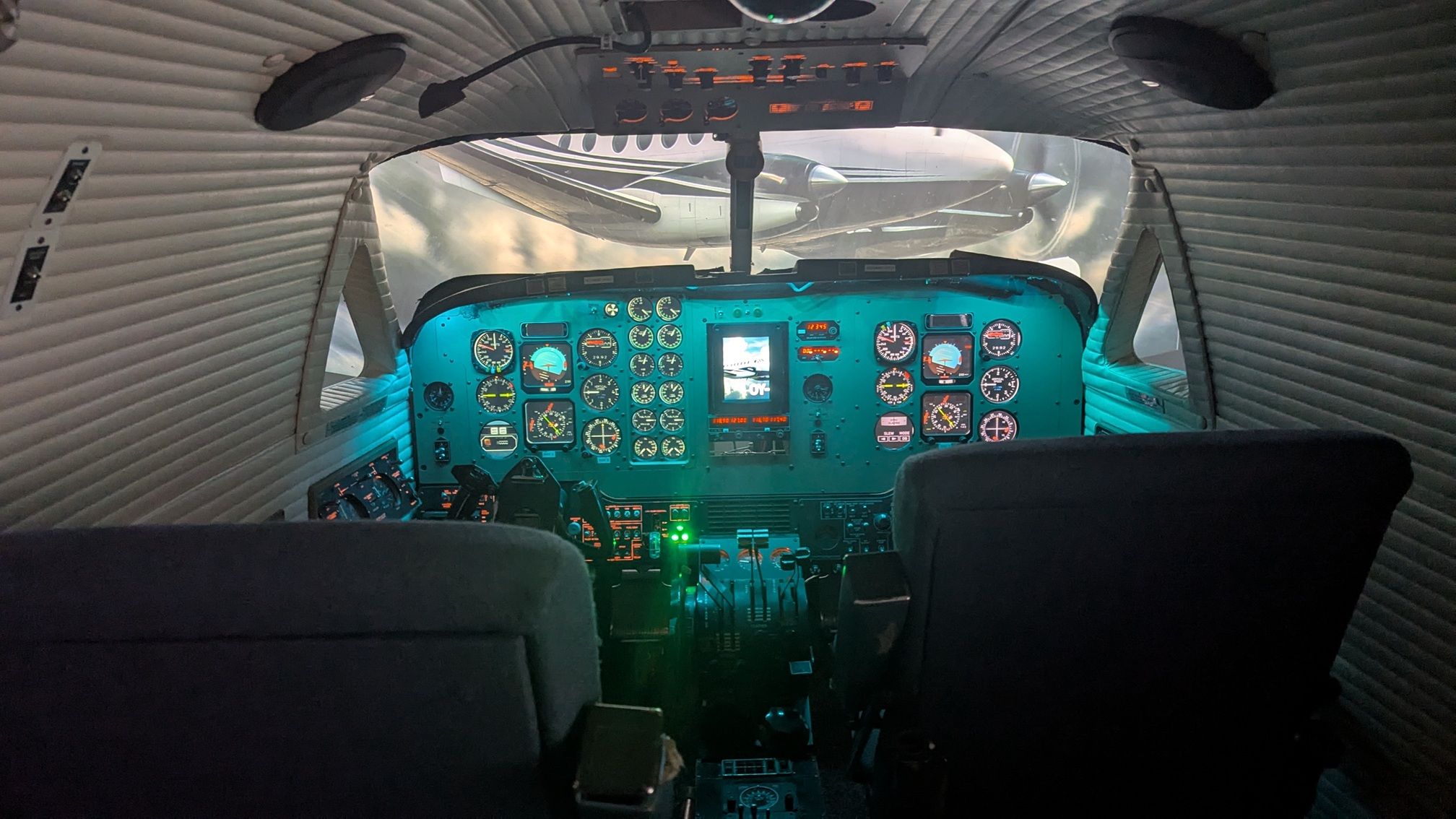
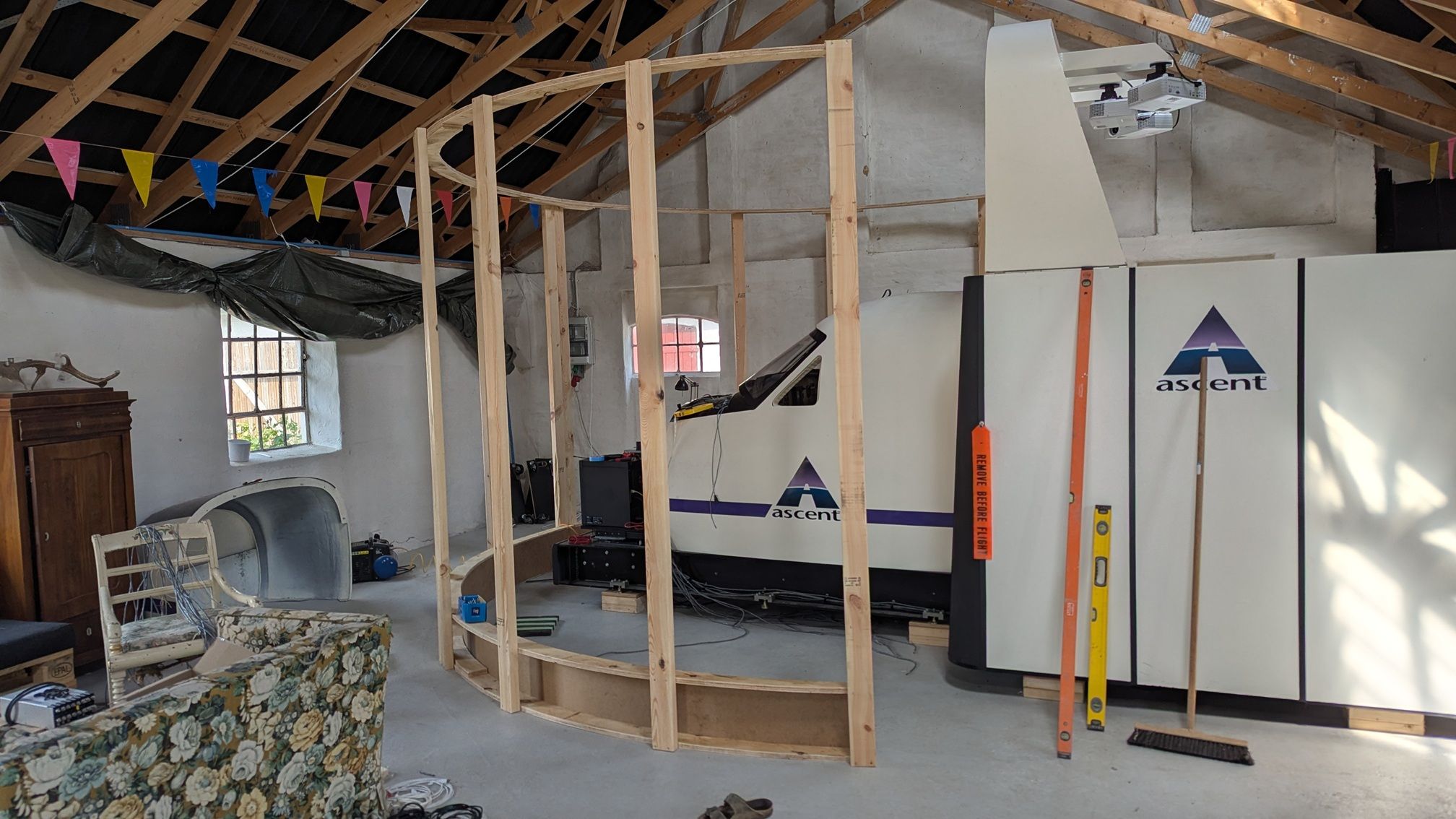
        Then I would like to show my setup, I was so fortunate to get my hands on a real King Air simulator, that I am rebuilding for MSFS2024, using the Black Square King Air as a model.

        The original setup was old, so I cut all connections and are using Mobiflight as connection to MSFS.

        The setup is in an old stable on my farm, so in the winter it is too cold to work on it, so I am looking forward to spring 🙂
        1.jpg
        2.jpg
        3.jpg

        Black SquareB 1 Reply Last reply
        0
        • R reiler

          @Black-Square @deepee

          Then I would like to show my setup, I was so fortunate to get my hands on a real King Air simulator, that I am rebuilding for MSFS2024, using the Black Square King Air as a model.

          The original setup was old, so I cut all connections and are using Mobiflight as connection to MSFS.

          The setup is in an old stable on my farm, so in the winter it is too cold to work on it, so I am looking forward to spring 🙂

          1.jpg
          2.jpg
          3.jpg

          Black SquareB Online
          Black SquareB Online
          Black Square
          Black Square Developer
          wrote last edited by
          #5

          @reiler What a tremendous opportunity! Being sent photos of my software running on serious hardware is always one of my favorite parts of interacting with this community. I also accept cat photos 🙂

          1 Reply Last reply
          1
          • D Offline
            D Offline
            deepee
            wrote last edited by
            #6

            That looks terrific mate! Awesome work

            1 Reply Last reply
            0
            • S Offline
              S Offline
              SadBucket
              wrote last edited by
              #7

              Absolutely love to see this. I noticed the analog king air appeared to be a better trainer than the B200 sim I was trained on. It felt like the systems were modelled for a full cockpit sim as well.

              1 Reply Last reply
              0
              • D Offline
                D Offline
                deepee
                wrote last edited by
                #8

                https://imgur.com/a/BOnIHhf

                Finally uploaded photos. Sorry gang.
                Everything made with a k40 laser and ender 3 printer apart from realsimgear 530

                1 Reply Last reply
                0
                • Black SquareB Black Square

                  Wow, that's quite the resume! I have quite the soft spot for cockpit builders, so please let me know any and all of your questions!

                  The master caution and warning L:Vars are...

                  (L:var_masterCautionLatching, number)
                  (L:var_masterWarningLatching, number)
                  

                  0 = Off
                  1 = Illuminated
                  2 = Acknowledged

                  Let me know if you have any questions!

                  D Offline
                  D Offline
                  deepee
                  wrote last edited by
                  #9

                  @Black-Square

                  Im really new to Lvars. Apologies.
                  I can make my master warning led light up, and flash via mobiflight now thankyou. Mobiflight shows me the on off state number as the light blinks etc. How do I tell it to turn off/reset when I press the master warning switch hardware or mouse click it?
                  I think once I get one Lvar under my belt ill be able to sort alot of the base ones. Out of the three numbers, o,1,2, which one should I attach after typing in the Lvar? Ive been searching the net every day and watching YouTube but im obviously missing or overthinking this.

                  Black SquareB 1 Reply Last reply
                  0
                  • D deepee

                    @Black-Square

                    Im really new to Lvars. Apologies.
                    I can make my master warning led light up, and flash via mobiflight now thankyou. Mobiflight shows me the on off state number as the light blinks etc. How do I tell it to turn off/reset when I press the master warning switch hardware or mouse click it?
                    I think once I get one Lvar under my belt ill be able to sort alot of the base ones. Out of the three numbers, o,1,2, which one should I attach after typing in the Lvar? Ive been searching the net every day and watching YouTube but im obviously missing or overthinking this.

                    Black SquareB Online
                    Black SquareB Online
                    Black Square
                    Black Square Developer
                    wrote last edited by
                    #10

                    @deepee Glad to hear that you're making progress. I wish I had more to offer, but I don't think I'm half the cockpit builder that you already are. As far as my software is concerned, a value of 2 means "acknowledged". It's a simple software latch, so...

                    0 = No caution condition exists.
                    1 = A caution condition exists, and has not been acknowledged.
                    2 = A caution condition exists, and has been acknowledged.

                    Maybe I overcomplicated it with that last part, but I want to make sure you have all the information you need. I hope that helps. Let me know if there is anything else I can do for you!

                    1 Reply Last reply
                    0
                    • D Offline
                      D Offline
                      deepee
                      wrote last edited by
                      #11

                      alt texthttps://imgur.com/a/BOnIHhf

                      1 Reply Last reply
                      0
                      Reply
                      • Reply as topic
                      Log in to reply
                      • Oldest to Newest
                      • Newest to Oldest
                      • Most Votes


                      • Login

                      • Don't have an account? Register

                      • Login or register to search.
                      • First post
                        Last post
                      0
                      • Categories
                      • Recent
                      • Tags
                      • Popular
                      • Users