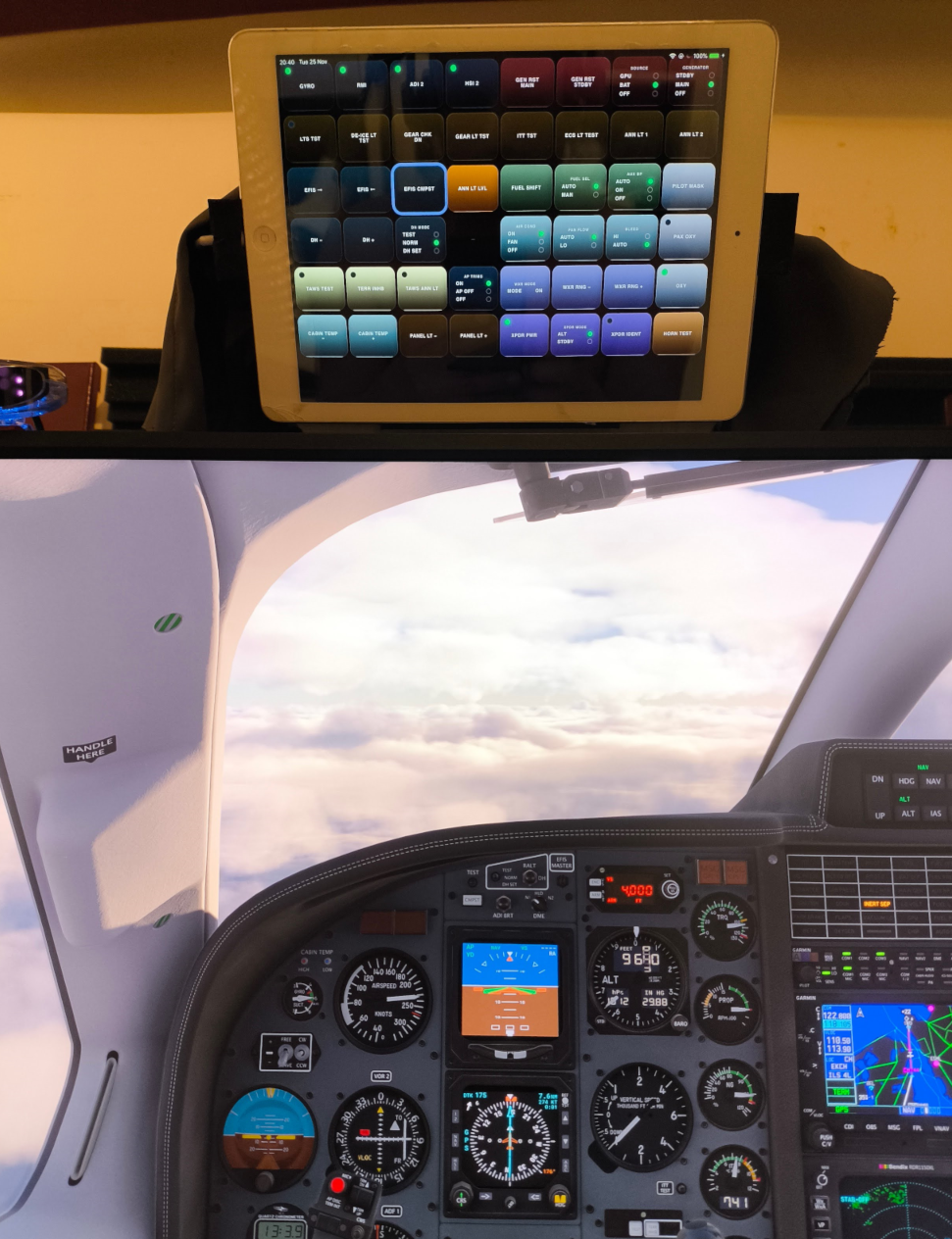
[AAO] Tablet as overhead panel
-
Sharing my simple touch-portal–like overhead panel for Axis and Ohs (AAO).
Sorry, but this post is likely targeting advanced users… if you managed to get the AAO Web API examples working, then you should be able to use the scripts here.
Big disclaimer: this is a dump of my quick-and-dirty, vibe-coded solution, done mainly to get rid of the mouse and keyboard until the day I finish adding proper hardware buttons to my simpit.
I decided to make use of the great AAO Web API. I created several buttons using custom AAO scripts, running on a very old iPad Air 1—which turned out to be a perfect fit for this purpose.
I’m quite pleased with the result. It’s easy enough to customize (use your favorite AI
 ), includes multi-state indicators for important switches, and provides visual feedback for button presses. It’s not perfect, but good enough until I have time to build a proper overhead with physical switches.
Below are the custom TBM scripts I created. I also use and refer to the amazing AAO scripts by @Ape42 (thanks again!):
https://flightsim.to/file/61922/blacksquare-tbm-850-scripts-for-lorby-s-axis-and-ohs-aaoOverhead panel files shared at:
https://drive.google.com/drive/folders/1b3Tmp9sVCiJbUqPi1tZn1aA4eYgFf5hF?usp=sharingUnpack tbmoverhead.zip into:
C:\Users\<user>\Documents\LorbyAxisAndOhs Files\WebPages
You should have a folder called "tbmoverhead" inside the above folder.Import BKSQTbm850custom_Scripts.xml into AAO scripts.
Sorry for the convoluted instructions, but if you managed to learn and launch the AAO web examples, this should be easy to get working.
iPad tips:
Settings → Display & Brightness → Auto-Lock → Never (keeps the display on)
In Safari, load the webpage → Share → Add to Home Screen
This creates a full-screen web view of the page.Good luck and safe landings.